
Play away from home
Orbit Play can reach your PS5 from anywhere with an internet connection: a friend’s place, a hotel, your phone’s hotspot. You turn it on once at home; after that, Start playing works the same away from home, with the pairing, playback settings and controls you already have. A computer that has never been home can set up from anywhere with a code from the PS5.
How it works
Orbit Play uses Orbit Link, built into the Orbit Play helper on your PS5 and
into the desktop app. Your computer and PS5 connect directly to each other,
encrypted end to end, through both home routers. Orbit Play’s server
(link.orbitplay.dev) only introduces them; your stream never passes through it.
There is no account to create and no port to open on your router.
Turn it on at home
- At home, with your computer on the same network as the PS5, connect and pair as usual (get started).
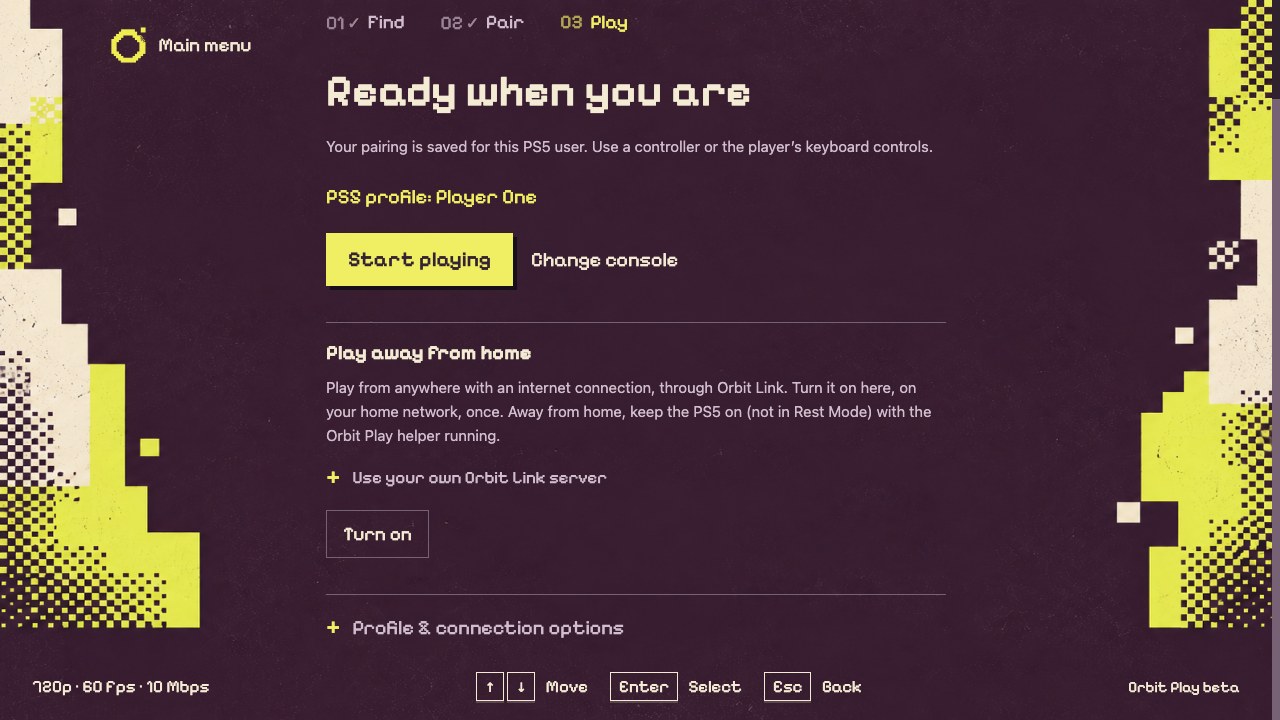
- Open Console setup. Under Play away from home, choose Turn on.
- Orbit Play sets it up on the PS5, adds your computer and connects them. The PS5 shows a notification when it’s connected.
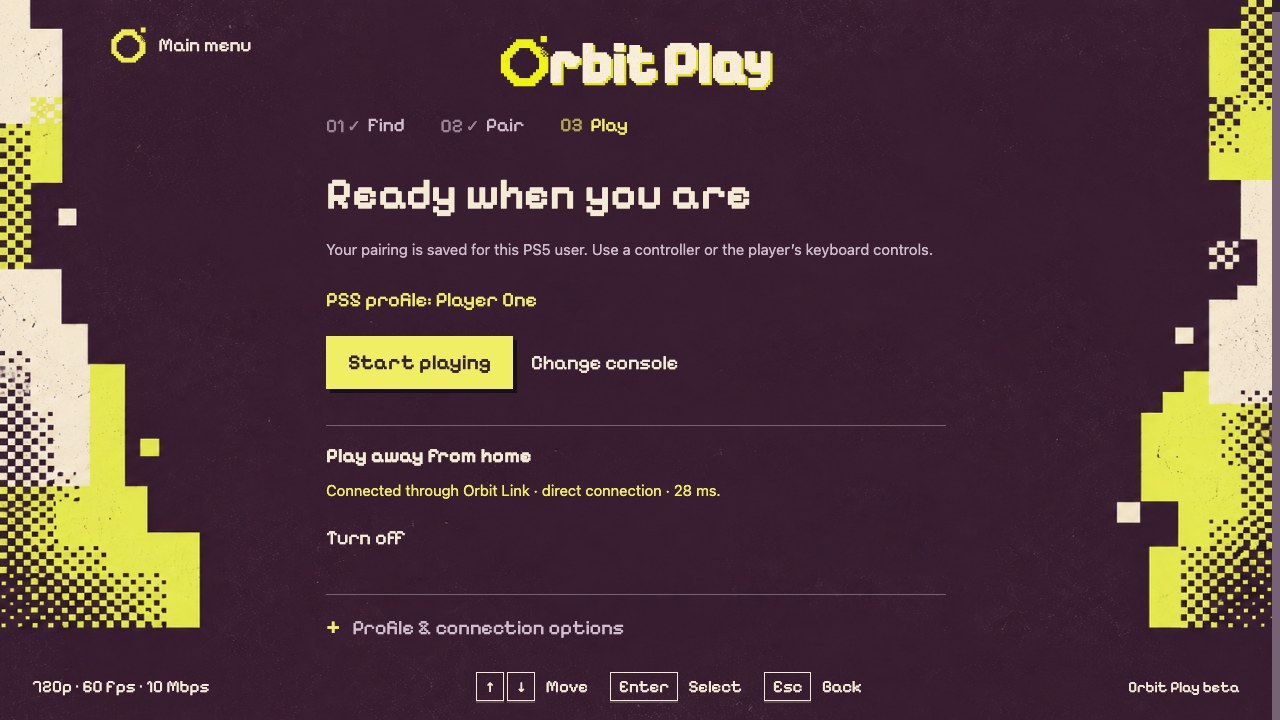
When it’s on, the section shows how your computer reaches the PS5, for example direct connection · 28 ms.
To use your own server instead of Orbit Play’s, open Use your own Orbit Link server before choosing Turn on, and enter its Server address and, if it gives codes for new devices, a Code from your server from its dashboard. See running your own server.
Set up from anywhere
A computer that isn’t on your home network can set itself up with a code from the PS5, if someone at home can use the console:
- On the PS5, open the Orbit Play icon in the Media row of the home screen, choose Play away from home, then Get a code. The PS5 shows an away code and its trust code. The away code works once, for 30 minutes. Getting a code also turns on play away from home on the PS5.
- In Orbit Play on the computer, open Console setup, then Not at home? Set up from anywhere. Enter the away code and the trust code, and choose Connect through Orbit Link.
- Orbit Play joins the PS5’s network, trusts the PS5 and learns its home address. Pair and play as usual: pairing works away from home too.
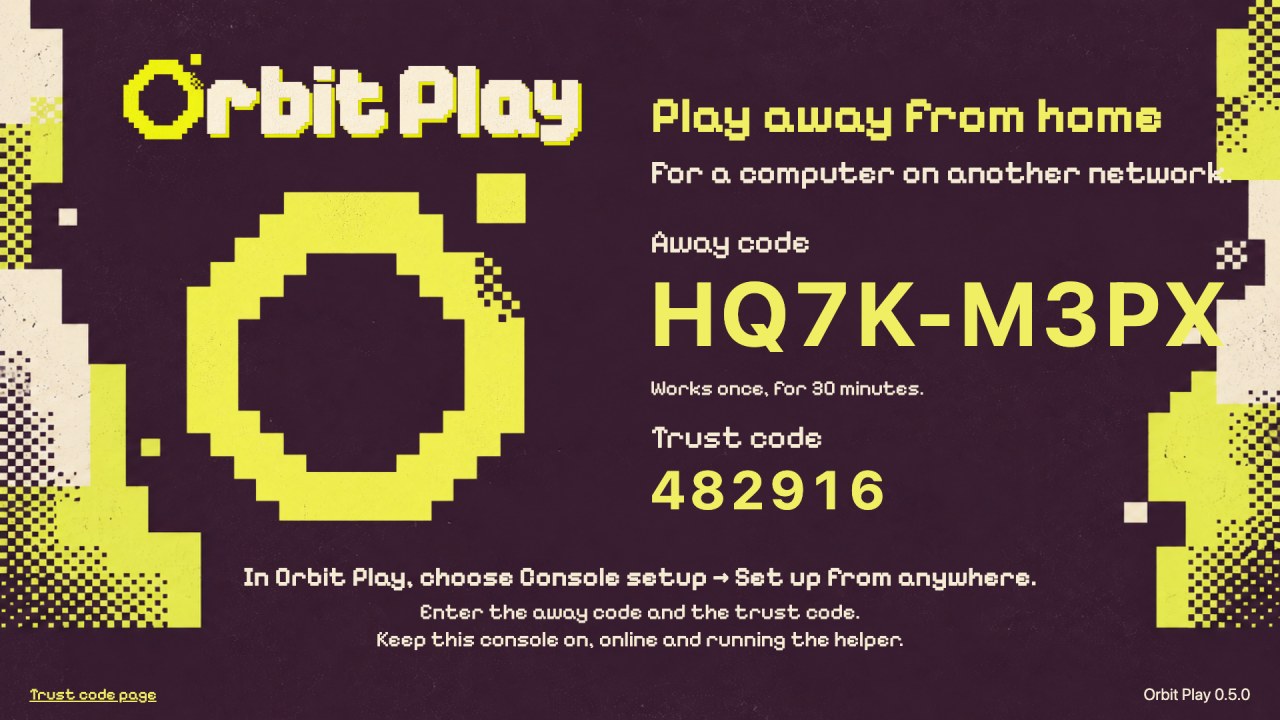
Example codes. Use the ones your PS5 shows.
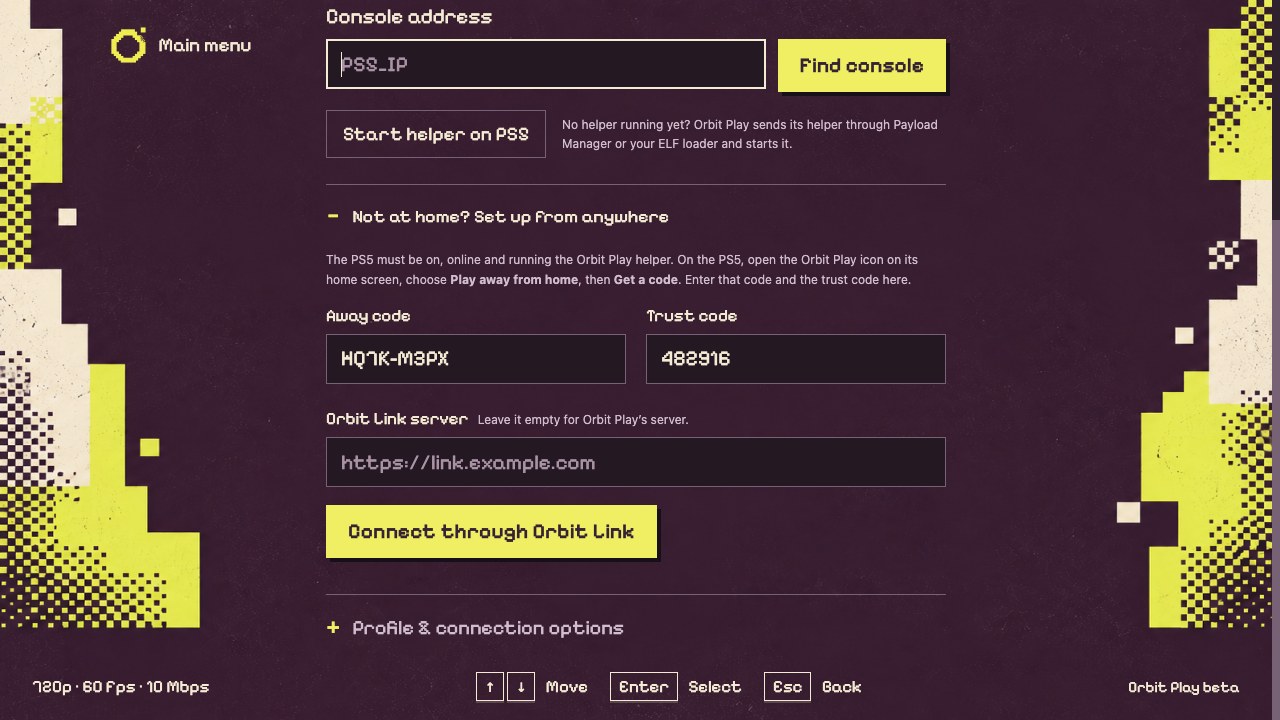
With your own server, the PS5’s page uses the server the PS5 is set up with; enter the same server’s address under Orbit Link server.
Play away from home
Open Orbit Play and choose Start playing, or Find console with your PS5’s usual address. When your home address doesn’t answer, Orbit Play connects over the internet instead; the main menu shows Away from home.
Before you leave, make sure the PS5 stays ready:
- On, not in Rest Mode, and connected to the internet.
- Jailbreak loaded and the Orbit Play helper running. Payload Manager’s autostart starts the helper whenever the jailbreak loads. A full PS5 restart (a power cut, an update) needs the jailbreak loaded again at the console, which you can’t do from away.
- The helper can restart while you’re away: your computer keeps its access.
Picture and data
Your home internet’s upload speed carries the stream, and distance adds delay. Press F in the player to see the packet loss: the share of the stream lost on the way over about the last two seconds. If the picture stutters or the packet loss stays above zero, lower the bitrate under Playback. At the default 10 Mbps, an hour of play uses up to about 4.5 GB, which matters on a phone hotspot or a metered connection.
When it can’t connect
Some routers give each connection a different port, as phone hotspots often do. Orbit Play then tries many ports at once for a few seconds; this worked in our tests with the PS5 on a phone hotspot. Connecting can take up to about half a minute. Some networks still block direct connections between devices, such as some hotel, school and office networks, especially when both ends are strict. Orbit Play’s server doesn’t relay streams, so Orbit Play then says “Orbit Link sees your PS5 but could not connect to it directly.” Try another network or a phone hotspot, or turn on UPnP on your home router, which helps most connections. We’re working on making this better. See troubleshooting.
Turn it off
At home, choose Turn off under Play away from home. That turns it off for both the PS5 and your computer and ends your computer’s access from away. Away from home, Turn off removes only your computer. Forget saved connections also removes your computer.
Privacy and security
- Your stream is encrypted end to end and goes straight between your devices.
- Orbit Play’s server knows your devices’ names, their public internet and local network addresses, and how they’re connected to each other, so it can introduce them. Nothing about your games or PS5 account is sent.
- Only devices your PS5 adds can join its network. Your computer’s away-from-home access works only over its away-from-home connection, never from your home network.
Run your own server
Orbit Link’s server is open source, in the source archive attached to each
release (the link/
folder). It runs on any machine with Docker and one open UDP port, and can be
set to relay streams when a direct connection isn’t possible. Its README explains the setup.