
Install and update Orbit Play
You only need to download the desktop app. It includes its streaming engine, libraries and the matching PS5 helper, which it can start on your jailbroken PS5 through Payload Manager or an ELF loader. No separate ELF download is needed. Python, Homebrew and a separate Chiaki-ng installation are not required.
Download the latest Orbit Play release and check the requirements. Follow the install notes included with your release.
Choose your download
| Computer | Download | Beta requirement |
|---|---|---|
| Mac with Apple Silicon | OrbitPlay-<version>-macos-arm64.dmg |
macOS 26 or later |
| Windows PC (x64) | OrbitPlay-<version>-windows-x64.zip |
Windows 10 or 11 |
| Windows on ARM | OrbitPlay-<version>-windows-x64.zip |
Windows 11; runs through x64 emulation |
| Linux PC | OrbitPlay-<version>-linux-x64.AppImage |
x64; Ubuntu 24.04 or a compatible distribution |
| Linux on ARM | OrbitPlay-<version>-linux-arm64.AppImage |
arm64; Ubuntu 24.04 or a compatible distribution |
Intel Macs and macOS versions before 26 are not supported in this beta. Other PS5 firmware is untested; see the compatibility notes.
macOS
- Quit any running copy of Orbit Play.
- Open the DMG and drag Orbit Play.app to Applications.
- Open Orbit Play from Applications, then eject the disk image.
- Continue with your first connection.
This beta is not Apple-notarized. If macOS blocks the
first launch and you trust the release you downloaded, dismiss the warning,
open System Settings → Privacy & Security, find the Orbit Play warning and
choose Open Anyway, then confirm Open. A managed Mac may restrict this
approval. See the included INSTALL-macos.txt for the release’s instructions.
Windows
Windows 11 on ARM has also been tested with a PS5. Use the same
windows-x64.zip download. Windows runs it through its built-in
x64 emulation,
with no extra setup required. The download is an x64 build; Windows on ARM
requires Windows 11.
- Extract the whole ZIP to a folder you will keep.
- Open OrbitPlay.exe inside the extracted Orbit Play folder. Keep its supporting files beside it; do not run it from inside the ZIP.
- If SmartScreen warns about the unsigned app and you trust the download, choose More info → Run anyway.
- If Windows Firewall asks, allow Orbit Play on your private network so it can reach the PS5. Continue with your first connection.
Linux
Download the AppImage matching your computer’s architecture. In a terminal in
the download folder, replace <version> with the version in the filename:
chmod +x OrbitPlay-<version>-linux-x64.AppImage
./OrbitPlay-<version>-linux-x64.AppImage
For ARM Linux, use linux-arm64 in both commands. If the AppImage reports a
FUSE error, use its extraction mode:
./OrbitPlay-<version>-linux-x64.AppImage --appimage-extract-and-run
Then follow your first connection. The app still needs a working desktop session, audio and controller access on your Linux system.
Check your downloads
Download SHA256SUMS from the same release. Calculate the SHA-256 hash of each
file you plan to use and compare it with that file’s entry in SHA256SUMS.
Replace FILE below with the exact filename, including its extension:
| System | Command |
|---|---|
| macOS Terminal | shasum -a 256 "FILE" |
| Windows PowerShell | Get-FileHash -LiteralPath "FILE" -Algorithm SHA256 |
| Linux terminal | sha256sum "FILE" |
All 64 characters must match; letter case does not matter. If you also
downloaded the PS5 ELF, check it too. A mismatch means you should download that file again
before running it. A match only proves the file is the one published here, so
download the file and SHA256SUMS from this repository’s release page.
Update the app and helper together
- Stop the stream and quit Orbit Play.
- Download and check the new app.
- On Mac, replace the app in Applications. On Windows, extract the new ZIP into a fresh folder and use that copy. On Linux, make the new AppImage executable and launch it.
- Stop the old PS5 helper in Payload Manager. If you can’t, fully restart the PS5 and reload the jailbreak. Orbit Play checks for a running helper before sending the replacement.
- Open Console setup, choose Start helper on PS5 and enter the new trust code. Check the app and running helper versions in Profile & connection options.
Saved connections and playback settings are stored separately from the computer app, so replacing the app keeps them. Do not choose Forget saved connections just to update.
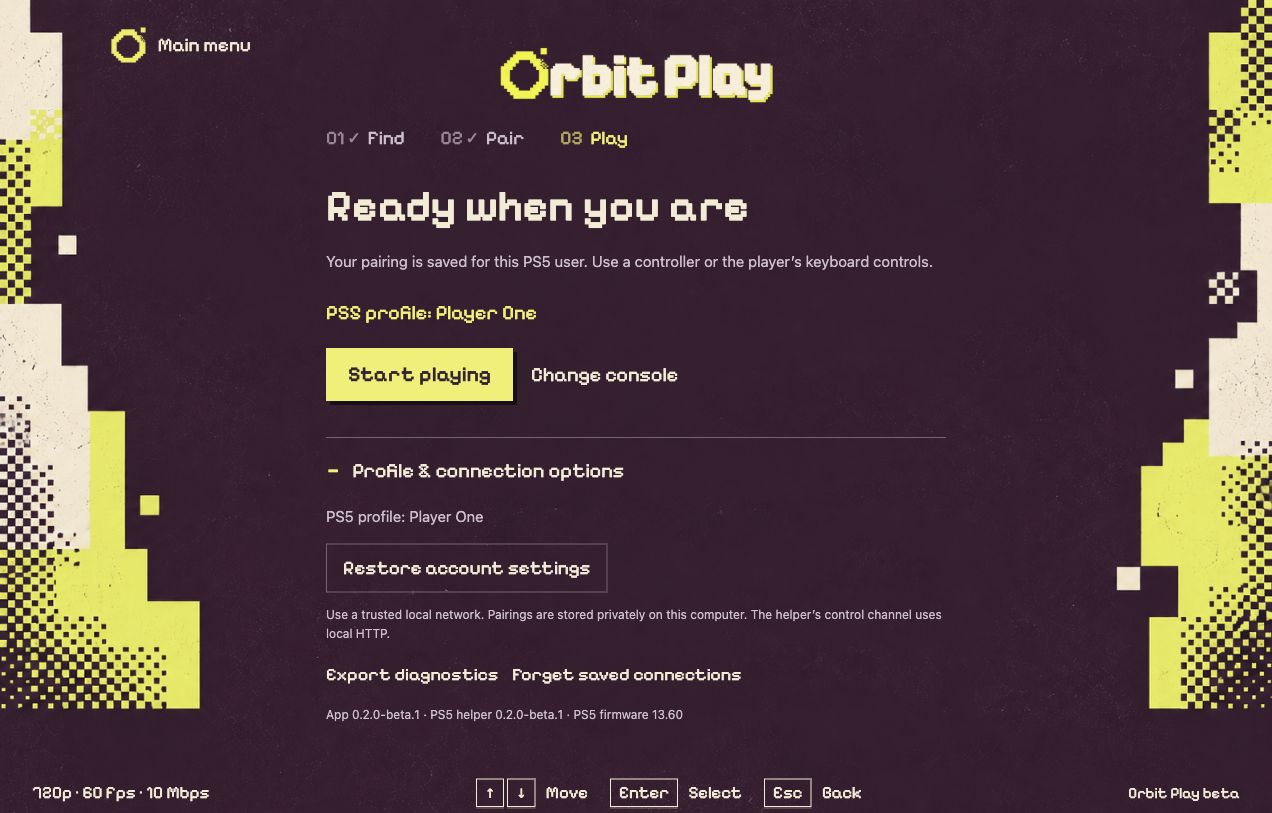
Sample profile. The version line identifies the helper that is actually running, not just the ELF stored on the PS5.
Other files in a release
| File | Purpose |
|---|---|
orbit-play-<version>-ps5.elf |
Optional standalone helper, only if you prefer to load it yourself |
INSTALL-macos.txt, INSTALL-windows.txt, INSTALL-linux.txt |
Instructions for that release |
orbit-play-<version>-source.tar.gz |
Matching project source, build instructions, licences and notices for both components |
orbit-play-<version>-third-party-source.tar |
Source for the GPL, LGPL and AGPL libraries shipped in the apps |
release.json |
Build and release details |
SHA256SUMS |
Checksums for the release files |
Next: Connect and pair · Start the PS5 helper