
Start the PS5 helper
The helper shows the code used to trust your computer and handles the Remote Play PIN automatically, so you don’t need a separate PIN tool. Keep it running while you use Orbit Play. The desktop app includes the helper and can start it for you. You do not need a separate ELF download.
The tested PS5 setup is firmware 13.60, Relapse and Payload Manager v0.5.2. See beta status for the limits on other firmware.
Start it from the computer app
- Turn on the PS5, load your jailbreak and log into the profile you want to play as.
- Open Payload Manager on the PS5, or enable an ELF loader.
- In the computer app’s Console setup, enter the PS5’s IP address and choose Start helper on PS5.
Orbit Play tries Payload Manager on port 8084 first. If it is unavailable, it uses an ELF loader on port 9021. If yours use other ports, change them under Profile & connection options. If an Orbit Play helper is already running, the app uses it instead of starting another; if it is a different version, stop it first (see restarts).
Optional: get the ELF
You only need the ELF to run the helper yourself. Choose either copy from the same version:
- In the app: choose Get PS5 helper. Save
orbit-play.elf, then upload or send it through your payload loader. - From a release: download
orbit-play-<version>-ps5.elfand check its checksum.
Optional: run the ELF yourself
- Turn on the PS5 and log into the profile you want to play as.
- Load your jailbreak, then run the Orbit Play ELF with Payload Manager or your compatible ELF loader.
- Read the helper’s console address and six-digit trust code. Open the Orbit Play icon in the Media row if you need to see the screen again.
- In the computer app, choose Console setup and follow the connection walkthrough.
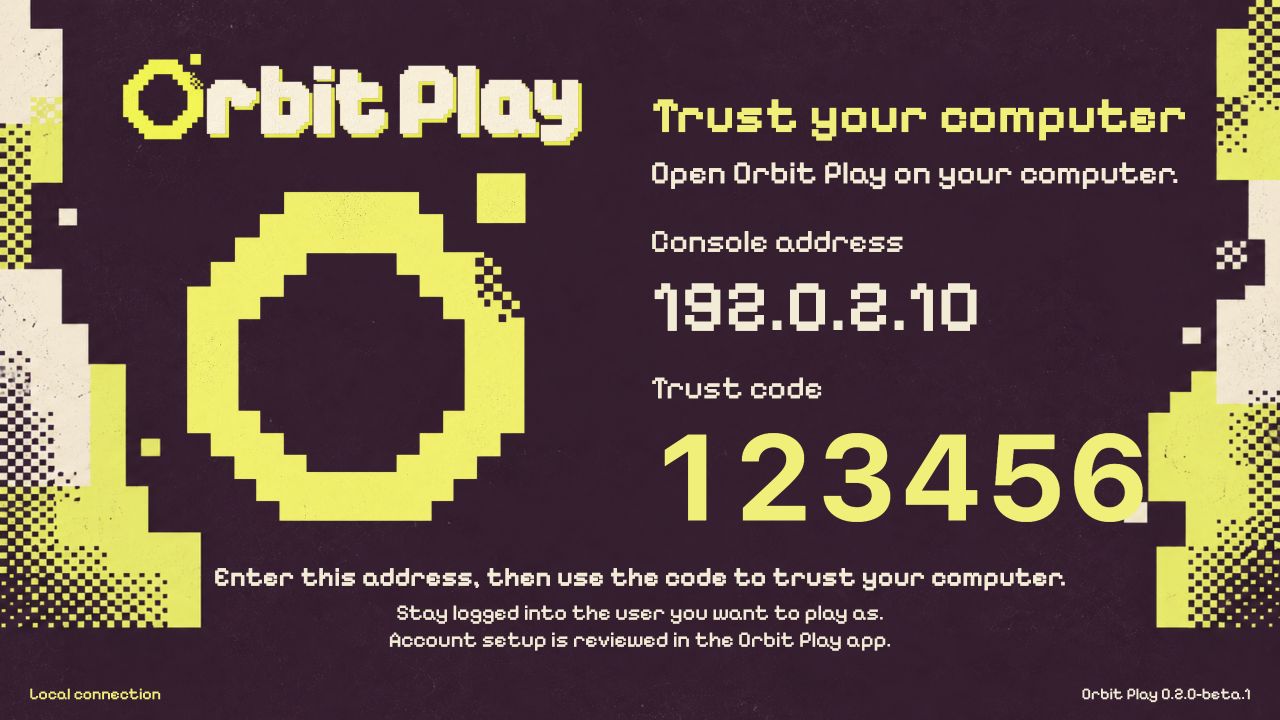
Example address and code. Use the values shown on your own PS5.
The two codes
| Code | What you do |
|---|---|
| Six-digit Orbit Play trust code | Enter it in the computer app to trust that computer. Use the new code after the helper restarts. |
| PS5 Remote Play PIN | Nothing to copy. Orbit Play exchanges it automatically when you choose Pair locally. |
Neither code is a PSN password. Orbit Play does not ask you to sign into PSN in the app.
The Media icon and restarts
The Media icon opens a page served by the running helper. It does not start the payload. After a PS5 reboot, load the jailbreak, open Payload Manager or enable your ELF loader, then choose Start helper on PS5 in the desktop app.
Replacing or deleting the ELF does not stop an older copy already running in memory. If the app reports the wrong helper version, or the PS5 says the helper’s port is already in use, follow the update steps.
Use it on your local network
Keep the PS5 and computer on the same trusted network. The helper’s control channel uses local HTTP on TCP port 34179. In the computer app, enter just the PS5’s IP address, without the port. Do not forward the helper port to the internet.
Guest Wi-Fi, client isolation or a VPN can prevent the devices from reaching each other. If the PS5 has no address, connect it to your local network and run the helper again. Orbit Play does not wake a PS5 from Rest Mode in this beta.
Add the Payload Manager source
This source is optional: use it if you prefer to download and run the helper through Payload Manager yourself. The Payload Manager source includes the 0.3.0 helper. Starting the included helper from the desktop app does not require adding a source.
- Copy the source URL below.
- In Payload Manager, open Settings → Manage Sources → Add Source.
- Paste that URL, choose Orbit Play and download the helper.
- Run it and use the computer app from the same release.
https://raw.githubusercontent.com/saawant12/orbit-play-ps5/main/payloads.json
Next: Trust, pair and play · Helper problems