Playback and controls
Choose Start playing after pairing. The stream opens in its own player window. Connect your controller to the computer or click the video to use the keyboard.
Choose your picture settings
Open Playback from the main menu, choose your settings and select Save playback settings. They apply to the next stream. If you are already playing, stop first, save the changes and start again.
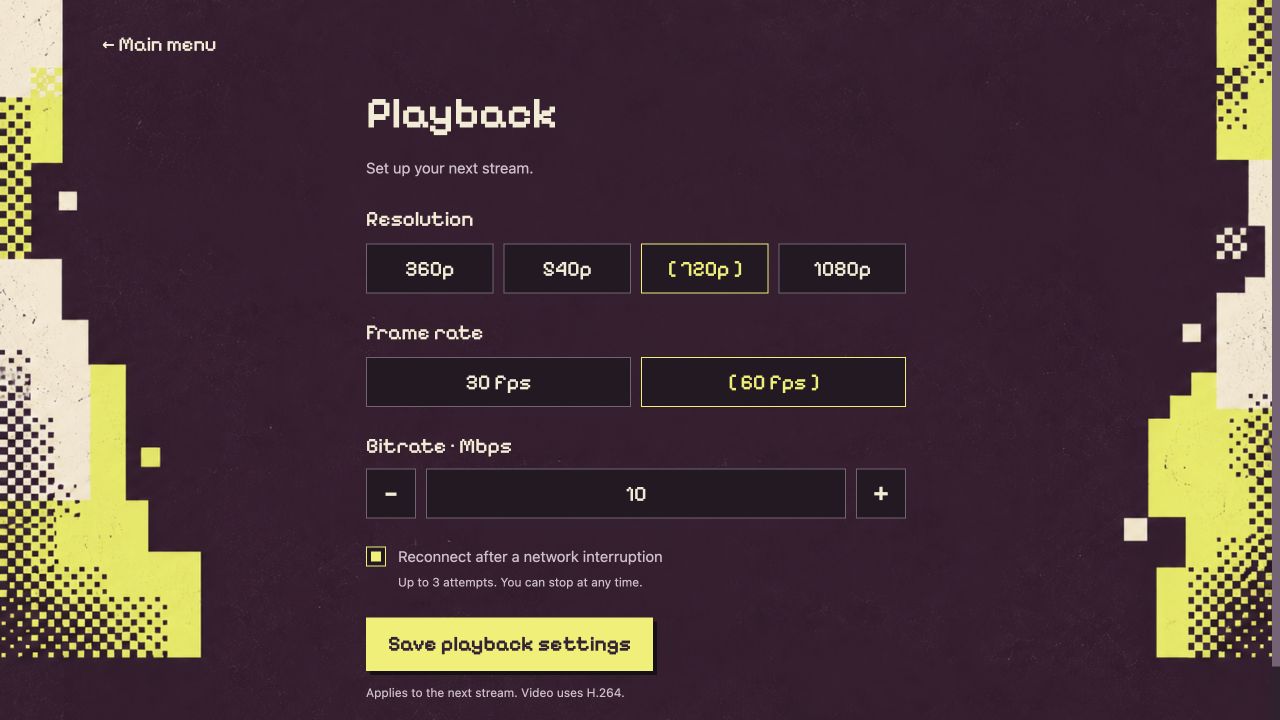
Start with the default 720p at 60 fps and 10 Mbps. Save changes before starting your next stream.
| Setting | Choices | How to choose |
|---|---|---|
| Resolution | 360p, 540p, 720p, 1080p | Start at 720p. Try 1080p for a sharper picture; reduce it if playback is unstable. |
| Frame rate | 30 or 60 fps | 60 fps gives smoother movement; 30 fps halves the work for the PS5, the network and your computer. |
| Bitrate | 1–50 Mbps in 0.5 Mbps steps | Start at 10 Mbps. A higher value uses more network capacity; lower it if the network struggles. |
| Reconnect | On or off | When on, Orbit Play can make up to three attempts after a network interruption. |
Video uses H.264. Picture quality also depends on the game, the computer and the local connection. Change one setting at a time so you can judge the difference.
Use a controller
Connect a DualSense to the computer through USB or Bluetooth before starting the stream. Both connection methods have been tested on the 13.60 setup. Other controllers are untested.
Keep the PS5 logged into the profile shown in Orbit Play. If you want another profile, stop the stream and switch profiles before reconnecting. Haptics are not supported in this beta.
Keyboard and mouse
Click inside the video window first. F1 or Controls opens the in-player guide. In that guide, choose Back to game or press Esc to return.
| Computer input | PS5 control |
|---|---|
| Arrow keys | D-pad / menus |
| W, A, S, D | Left stick |
| I, J, K, L | Right stick / look |
| Enter or Space | Cross / confirm |
| Esc or Backspace | Circle / back |
| Z / X | Square / Triangle |
| Q / E | L1 / R1 |
| 1 / 3 | L2 / R2 |
| C / V | L3 / R3 |
| O / R | Options / Create |
| P / Tab | PS button / touchpad click |
| Left / right mouse click | Cross / Circle |
| Middle mouse click | Touchpad click |
| F | Stream statistics |
| F1 | Controls guide |
Mouse movement does not aim or move a PS5 pointer. Use I, J, K, L for right-stick movement. Switching focus away from the player releases held keyboard and mouse inputs. Keyboard mappings are fixed in this beta.
Stop and reconnect
Choose Stop playing from the main menu, Stop in the connection screen, or close the player window to end the stream. An intentional stop does not trigger automatic reconnect. Pressing Esc while playing sends Circle to the PS5; it is not the stop-stream shortcut.
For a network interruption, reconnect checks the selected PS5 user before each attempt. If the stream does not return, keep both devices awake, confirm that the helper is running and use Start playing again. If the PS5 restarted, reload the jailbreak and helper first. Reconnect does not wake a sleeping console or switch profiles.
If something feels wrong
- No keyboard input: click the video window, then try an arrow key and Enter.
- Controller not detected: stop the stream, check the controller connection in your computer’s settings, then start again.
- An input stays held: stop the stream and reconnect the controller before starting again. Export diagnostics if it repeats.
- Stutter or breakup: stop, lower the bitrate or resolution in Playback, save, and retry. Check the local connection as well as picture settings.
For repeated failures, follow troubleshooting.