
Troubleshooting Orbit Play
Start with the message shown in Orbit Play. Keep the PS5 awake and logged into the intended profile. The desktop app includes the matching helper; choose Start helper on PS5 to run it. Export diagnostics after a repeated failure, before making more changes.
| Where you are stuck | Go to |
|---|---|
| The computer app will not open | First launch |
| Start helper on PS5 fails | Starting the helper |
| Find console cannot reach the PS5 | Finding the console |
| The code is rejected | Trust code |
| Pair locally fails | Pairing |
| Setup is interrupted or unavailable | Account setup |
| Video works but controls do not | Controls |
| The helper still reports an old version | Updating the helper |
| You need to report a bug | Diagnostics |
The computer app will not open
Use the build for your operating system and architecture. Apple Silicon Mac
builds need macOS 26 or later; Intel Macs are outside this beta. Windows requires
the whole ZIP to be extracted, including files beside OrbitPlay.exe.
On Windows 11 on ARM, use the same x64 ZIP; it runs through Windows’ built-in
emulation and has been tested with a PS5.
The Mac beta is not notarized and the Windows beta is not code-signed. Follow the platform’s first-launch steps in installation. On Linux, make the AppImage executable; use the documented extraction mode if FUSE is unavailable. A managed computer may restrict running the app.
Start helper on PS5 does not work
Orbit Play tries Payload Manager on port 8084. If it is unavailable, it uses an ELF loader on port 9021.
- Load the jailbreak and open Payload Manager on the PS5, or enable your ELF loader, before choosing Start helper on PS5.
- If your loader uses other ports, enter them under Profile & connection options.
- If a launch could not be confirmed, Orbit Play checks whether the helper started. If it still cannot connect, check the PS5 and choose Find console before attempting another launch.
- If the app reports a different helper version, stop that helper in Payload Manager or fully restart the PS5 first; see the old helper version is still running.
Find console does not connect
- Confirm the helper is running, or choose Start helper on PS5. The Media icon alone does not start it.
- Read the current PS5 address from the helper. Enter just that address in the
app, without
http://or a port. - Keep both devices on the same trusted local network. Guest networks, Wi-Fi client isolation and VPN routing can prevent a connection.
- On Windows, check that Orbit Play is allowed on your private network.
The helper control channel uses TCP port 34179. Keep it local; port forwarding is not part of Orbit Play setup. After a PS5 reboot, reload the jailbreak and helper before trying again.
The trust code does not work
Use the six-digit Orbit Play code currently shown by the helper, not a Remote Play PIN or a code from an older screenshot. Restarting the helper creates a new code. Find the console again and enter the new code when asked.
The PS5 rejects pairing
Check the PS5 profile shown in the app. Keep that profile logged in during pairing. If it is wrong, use the profile-switching steps.
If Orbit Play offers Set up Remote Play or Enable Remote Play, complete the reviewed account setup flow before pairing. Profiles that already have Remote Play ready do not need setup again.
On firmware 13.60, you can pair after initial setup without restarting the PS5. Other firmware is untested; after account setup, restart the PS5 and reload the jailbreak and helper before pairing. After restoring account settings, restart the PS5 when the app asks, whatever the firmware.
If pairing still fails, export diagnostics and report the exact error before changing account settings again.
Remote Play setup is interrupted or unavailable
If Orbit Play asks you to restore account settings, stop the stream and use Console setup → Profile & connection options → Restore account settings. Review the selected profile and follow the recovery guide. Do not delete the profile or its backup as a troubleshooting step.
If the helper could not read all account settings, export diagnostics. That error means setup stopped before changing them. If the app reports an incompatible helper or a version mismatch, install the latest desktop app, stop the old helper and start the included helper before retrying. See the update steps.
Account setup does not remove parental restrictions or sign the profile into PSN. For parental-control or game-access errors, record the exact message and which profiles were logged in, then report the problem before making more account changes.
Switch PS5 profiles
- Stop the current stream.
- Log into the user you want on the PS5.
- Choose Console setup → Change console, enter the same console address and find it again. Trust the computer if asked.
- Check the displayed profile name. Pair that profile if it has not been paired before, then start playing.
Pairings are saved per console address and PS5 user. If the PS5 address changes, find the new address and pair again. Orbit Play checks the active user before connecting; it does not switch the PS5 user for you.
The helper icon does not open
Choose Start helper on PS5 in the desktop app first. The Media icon only opens the running helper’s page. After a reboot, load the jailbreak, open Payload Manager or enable your ELF loader, then start the helper again from the app. If the icon reports an error while the helper runs, record its exact text and test whether the computer app can still find the helper.
The old helper version is still running
Replacing or reinstalling the ELF does not stop the old process, and Orbit Play checks for a running helper before sending another. Stop the old one in Payload Manager. If that is not available, fully restart the PS5 (not Rest Mode) and reload the jailbreak. Then choose Start helper on PS5.
Check Console setup → Profile & connection options for the running app and helper versions. Follow the update guide.
Video works but controls do not
Click the player window to give it focus. Arrow keys navigate, Enter confirms and Esc/Backspace goes back. Press F1 for the full mapping. Mouse movement is not mapped to aiming.
Connect a controller to the computer, then start the stream. If a controller disconnects, stops responding or leaves an input held, stop the stream, reconnect the controller and start again. Report repeated input problems with diagnostics.
The picture stutters or reconnect does not finish
Check that both devices and the helper are still awake and connected. Stop the stream, lower the bitrate or resolution in Playback, save and try again. Reconnect can make up to three attempts when enabled, but cannot start a stopped helper or wake the console. If it does not retry or restore the stream, connect manually and export diagnostics.
Forget saved connections
Console setup → Profile & connection options → Forget saved connections clears the computer’s saved connections. You will need to trust and pair again. It does not restore PS5 account settings or erase PS5 saves. Use the separate recovery flow for account changes; do not use forgetting as a routine update step.
Export diagnostics
- Open Console setup → Profile & connection options.
- Choose Export diagnostics after the error. Save the JSON file.
- Open Report a bug from the project README. Include your operating system and architecture, jailbreak/loader, controller connection, exact error and steps to reproduce.
- Review the export, then attach it. App, helper and PS5 firmware versions are recorded in the export and shown in the connection options.
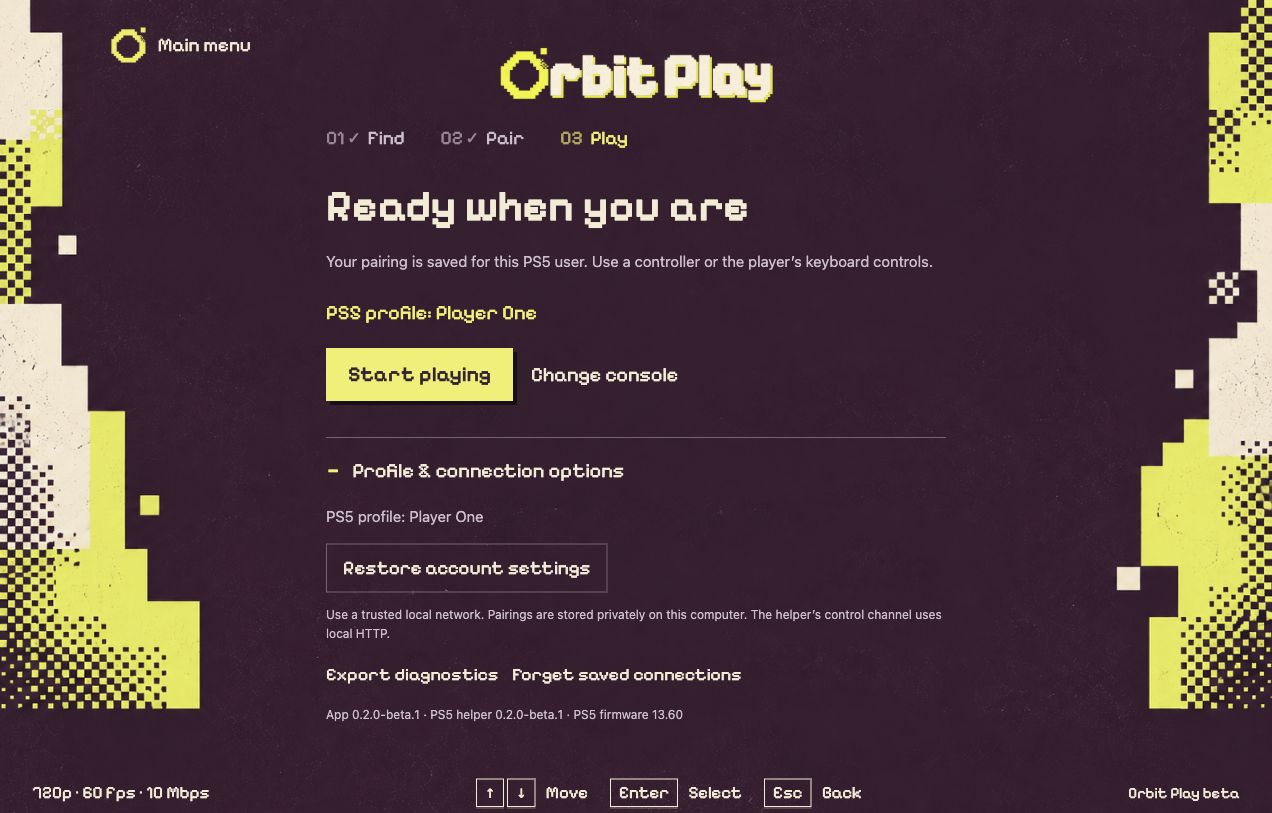
Sample profile and versions. Export diagnostics is in the expanded connection options.
Diagnostics omit addresses, names, account IDs, PINs and pairing keys. Still review attachments before posting. Keep real trust codes, account data and console-side account-settings backups private. Crop or redact personal details from screenshots you attach to a public issue.