
Get started with Orbit Play
This walkthrough takes you from starting the helper on your PS5 to your first stream. You don’t need a separate Chiaki app, a PSN sign-in, an account ID to copy by hand or a tool to generate the Remote Play PIN.
See download availability and requirements before installing. This beta connects over the same local network only.
Before you start
If account setup is needed, we recommend a separate new PS5 profile with no saves. Creating a new local account ID may make existing saves on that profile inaccessible. Read account setup and recovery before continuing.
- Download and install just the desktop app. It includes the PS5 helper and starts it for you; a separate ELF download is not needed.
- Keep the computer and PS5 on the same trusted local network. Keep the PS5 awake.
- Load your jailbreak, open Payload Manager (or enable an ELF loader) and log into the PS5 profile you want to play as.
- Connect a controller to your computer if you want to use one. Keyboard controls are also available.
Screenshots show 0.2.0-beta.1 with example profile data. Use the address and code shown on your PS5 when following the steps.
1. Open Orbit Play on your computer
Choose Console setup. Start playing also takes you to setup when you have not connected a console yet.
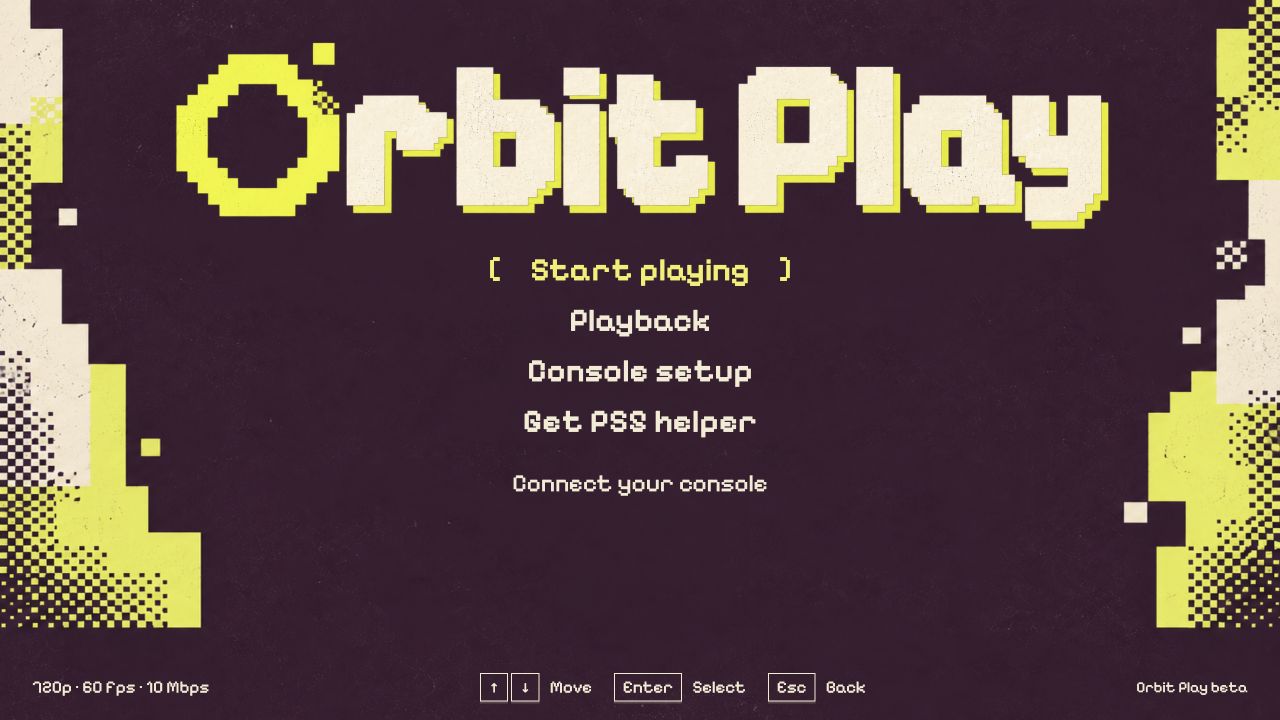
Console setup starts the connection flow. Playback changes the next stream’s picture settings.
2. Start the helper on your PS5
In Console address, enter your PS5’s IP address, then choose Start helper on PS5. Orbit Play sends its helper through Payload Manager, or an ELF loader if Payload Manager isn’t running, and starts it. The PS5 then shows a notification with its address and a six-digit trust code, and Orbit Play moves on to step 4.
You can find the PS5’s IP address in Settings → Network → Connection Status on the PS5. If the notification has disappeared, open the Orbit Play icon in the PS5 Media row while the helper is running. See the helper guide if you prefer to run the helper yourself.
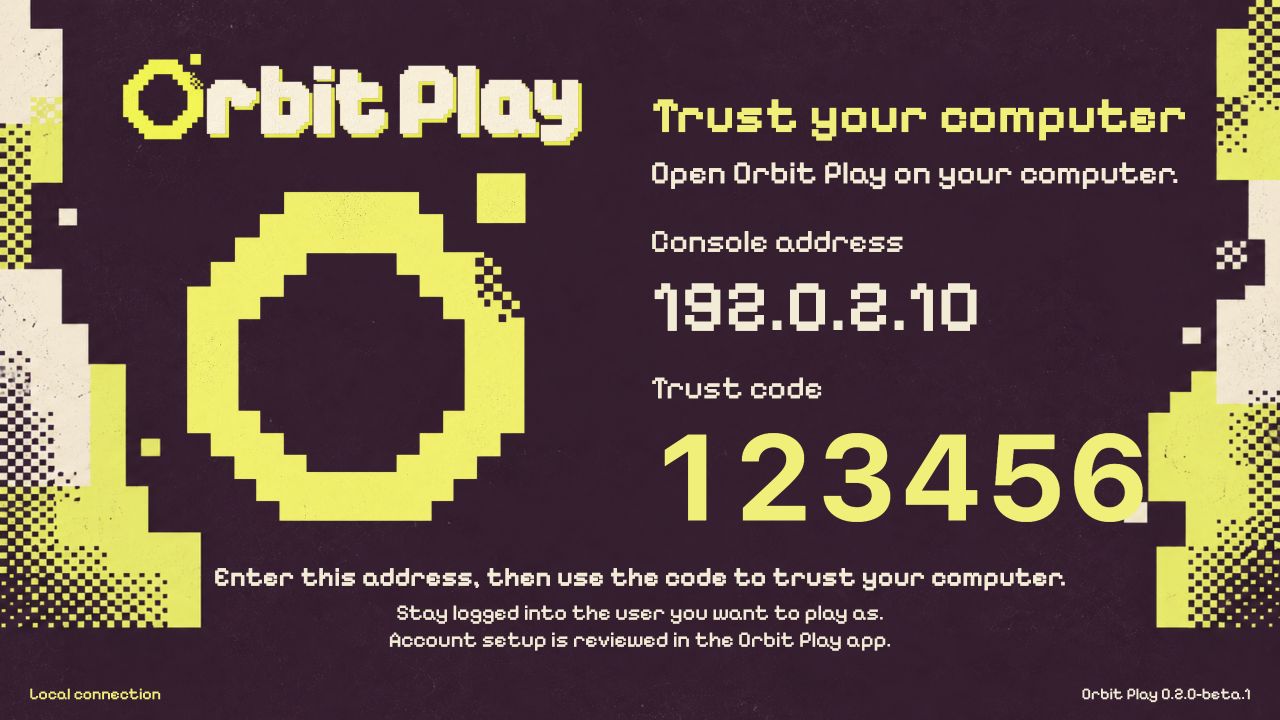
Sample data: use your console’s address and current trust code. The Media icon opens the helper screen; it does not start the payload.
3. Find your console
If the helper is already running, or you started it yourself, enter the address
it shows and choose Find console instead. Enter only the address, without
http:// or a port number.
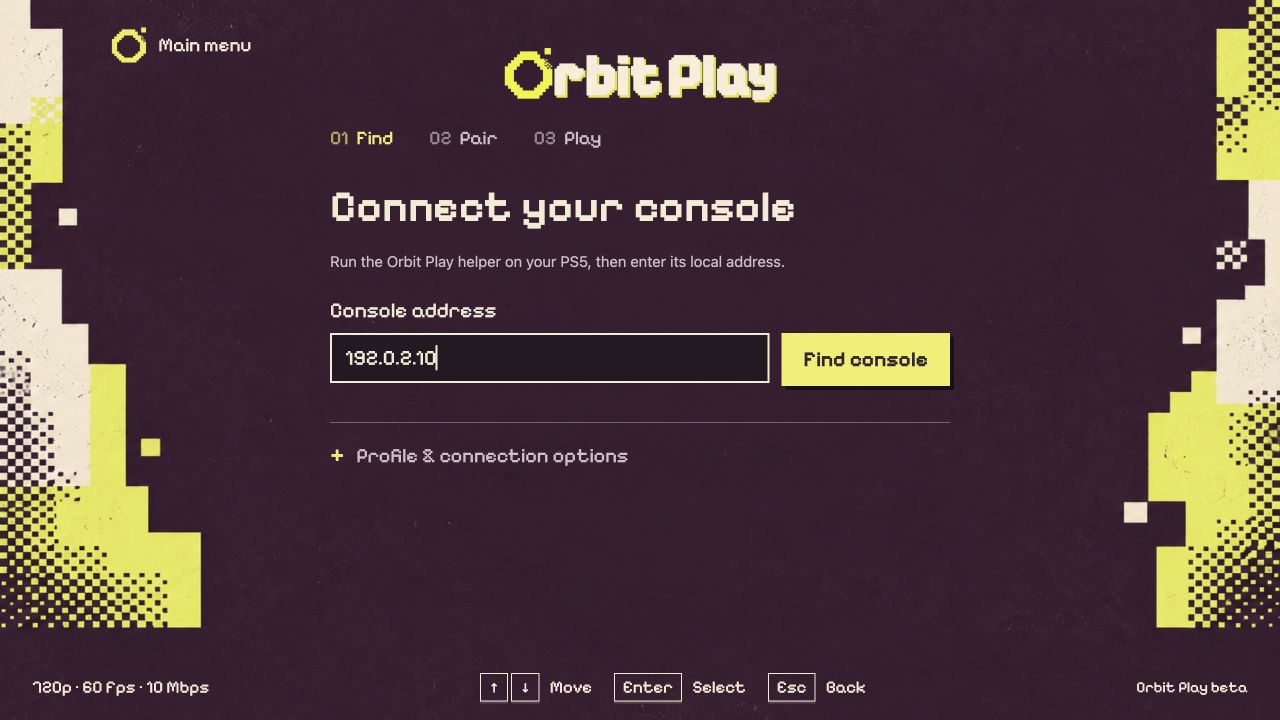
Find console checks the running helper. If the app reports a version mismatch, install the latest desktop app, stop the old helper and start the included helper.
4. Trust this computer
Enter the six-digit code currently shown by the helper, then choose Trust this computer. This step may be skipped when the running helper already trusts this computer.
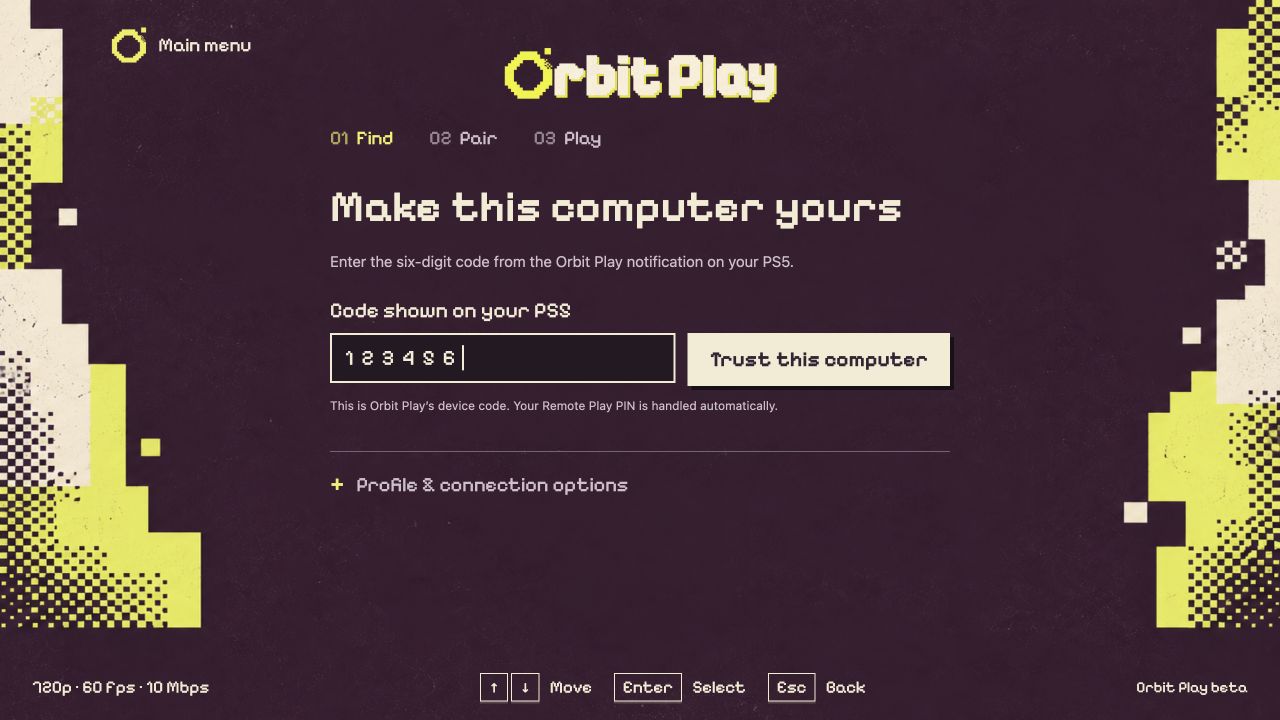
This is Orbit Play’s trust code. You do not need to retrieve or type the PS5’s Remote Play PIN.
5. Check the profile and pair
Make sure PS5 profile names the user you want to play as. Choose Pair locally and keep that user logged in while pairing finishes.
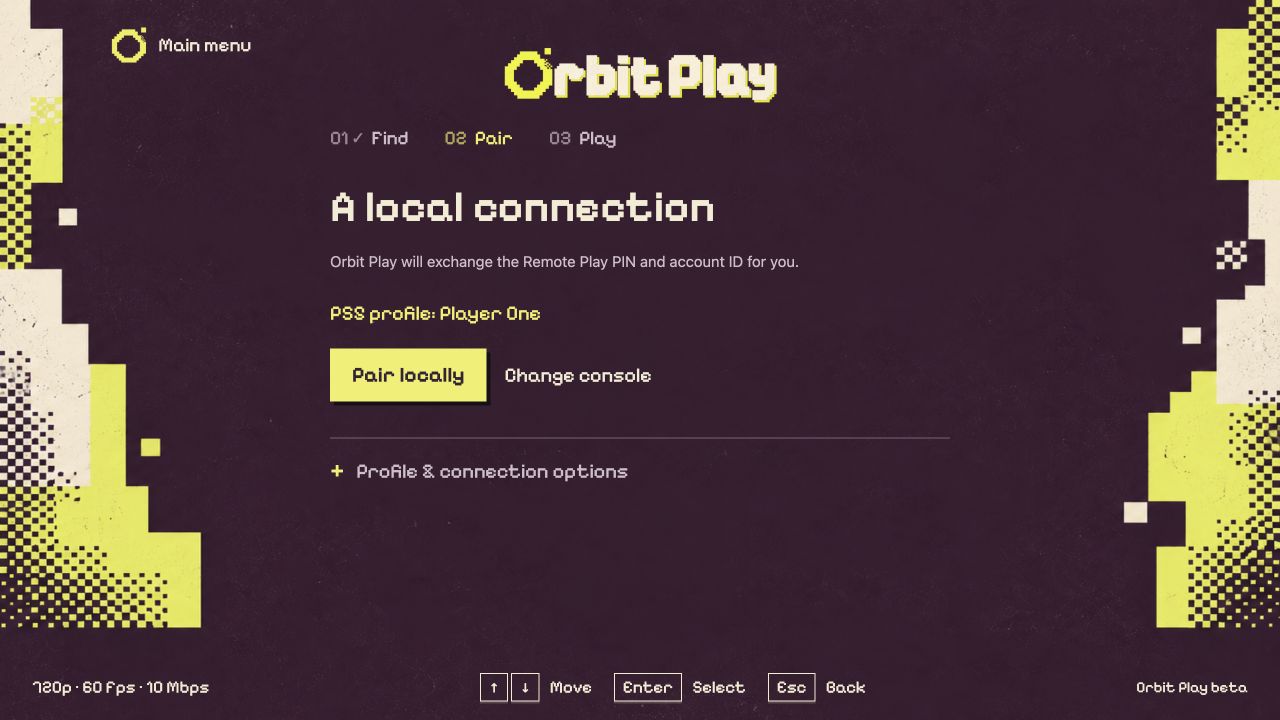
Orbit Play exchanges the Remote Play PIN and account ID for the displayed profile.
If you see Set up Remote Play or Enable Remote Play instead, the profile needs setup first. Follow account setup, read the proposed changes, then return to pairing. Setup is experimental. Creating a new local ID can affect access to existing saves; it requires your explicit confirmation. Profiles that are already ready skip this step.
If the wrong profile appears, stop here. Log into the intended user on the PS5, choose Change console, and find the console again. Each user is paired separately.
6. Start playing
When you see Ready when you are, choose Start playing. The player opens in a separate window. Click the video to give it keyboard focus.
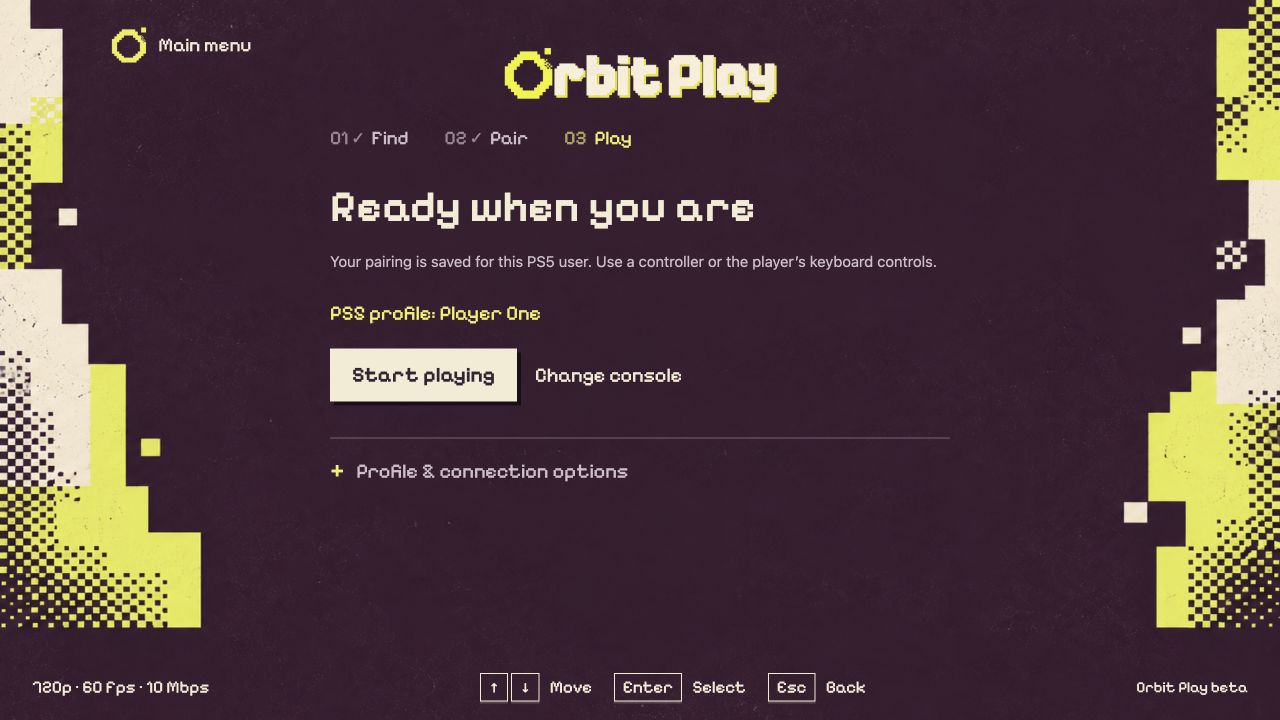
Your pairing is saved. Choose Start playing to open the player.
Use arrow keys for menus, Enter to confirm and Esc/Backspace to go back. Press F1 in the player for the complete controls. See playback and controls for controllers, picture settings, stopping and reconnecting.
Next time you play
Keep the PS5 awake, the helper running and the same profile logged in. Open Orbit Play and choose Start playing; use Console setup if it needs to find or trust the console again. Saved pairings are kept for each console address and PS5 profile.
After a PS5 reboot, reload the jailbreak and choose Start helper on PS5 again. A helper restart changes the trust code, so enter the new one when asked. If your PS5’s IP address changes, find the new address and pair again.
Next: Playback and controls · Switch profiles or recover a connection